click here: SAVE TUBE
--- ENJOY
Showing posts with label tutorial. Show all posts
Showing posts with label tutorial. Show all posts
January 18, 2010


September 28, 2009
How to Backup a Blog on Blogspot to Your PC
Recently, I changed this blog to a new look using a 3 column template. I will create a separate entry how I change from 2 column to 3 column template. Before migrating to a new template, I had a fear that my blog entries might disappear because of a bug of the new template or some other reasons.
So, I consulted again my virtual bestfriend, GOOGLE for the answers. Google search results listed many ways on how to backup a blogspot blog such as using a software, a built in exporter, email, etc. but only one backup method that catched my interest and attention. This is by viewing all your blog entries on a single page then save the page to your PC or hard drive. Easy, isn't it.
So here it is the "HOW TO", happy reading....
1. Type this address in the address bar
where:
XXX - URL of your blog minus the blogspot.com extension
N - number of blogs entries you want to backup, make it higher if you are not sure
illustration:
I have blog entries which is less than 100. So, I types below URL to the address bar of my internet browser.
2. Then issue a "Save As" command and locate your folder in your hard drive where do you want to store you blogs. Easy, isn't it.
>>> END
So, I consulted again my virtual bestfriend, GOOGLE for the answers. Google search results listed many ways on how to backup a blogspot blog such as using a software, a built in exporter, email, etc. but only one backup method that catched my interest and attention. This is by viewing all your blog entries on a single page then save the page to your PC or hard drive. Easy, isn't it.
So here it is the "HOW TO", happy reading....
How to Backup a Blogspot Blog
1. Type this address in the address bar
http://XXX.blogspot.com/search?max-results=N
where:
XXX - URL of your blog minus the blogspot.com extension
N - number of blogs entries you want to backup, make it higher if you are not sure
illustration:
I have blog entries which is less than 100. So, I types below URL to the address bar of my internet browser.
2. Then issue a "Save As" command and locate your folder in your hard drive where do you want to store you blogs. Easy, isn't it.
>>> END
September 26, 2009
Stock Market - Most Active, Top gainers or Top losers Defined
- During trading, a stock can be called most active, top gainers or top losers.
1. A stock belonging to the most active list is a stock with a lot of buyers and sellers.
- These set of stocks are also called ‘movers'.

2. Top gainers list are stocks with the highest gain in a single trading day

3. Top losers are stocks with the highest loss in a single trading day.

How to Dial/Call International Phone Number to and from the Philippines
- I have just arrived to our home when my mother asked me how to dial my auntie's mobile number who is residing in Canada
- So, I consulted my virtual bestfriend for all time, GOOGLE for the answer.
- As expected, it didn't fail me.
- Here it is, sharing to you...
International Dialing Codes of the Philippines - How to Call to or from the Philippines
- The following table contains the international city dialing codes for the Philippines.
- International dialing instructions for making calls to or from the Philippines are provided at the bottom of the page.
City Dialing Codes for the Philippines
|
September 24, 2009
How to Backup Files to Network Drive Automatically
- I used the software Everyday Auto Backup for periodic automatic back up of my files
- it can be used to a network drive or external hard drive
- here it is, the "HOW TO"
Requirements:
1. Network drive mapped to file server

2. Everyday Auto Backup software
Link: DOWNLOAD HERE

Procedures (use Jeilyn PC as example):
1. Double click the network drive (Z: drive in this example) located at My Computer, encircled below
- it can be used to a network drive or external hard drive
- here it is, the "HOW TO"
Requirements:
1. Network drive mapped to file server

2. Everyday Auto Backup software
Link: DOWNLOAD HERE

Procedures (use Jeilyn PC as example):
1. Double click the network drive (Z: drive in this example) located at My Computer, encircled below
How to Set-up/Assign Static IP-address in Windows
- having trouble assigning static ip address on your PC?
- here is it, the "HOW TO"
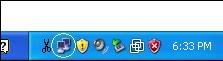
1. Double click the 2 computer located at the lower right of the desktop screen.

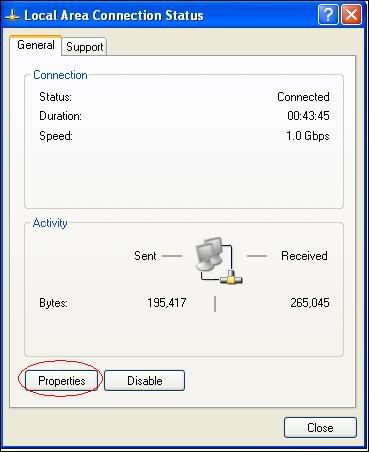
2. Click properties


5. Click Close

6. Click Close

1. Open Control Panel

2. Click Classic View
3. Open Network and Sharing Center
4. Click Manage network connections

5. Double click Local Area Connection

6. Select Internet Protocl Version 4 (TCP/IPv4) then click Properties

7. Fill-out desired information

8. Click close
9. Click close
1. Press start then run

2. Type CMD
3. Check if the configured IP-address matched

- here is it, the "HOW TO"
For XP users
1. Double click the 2 computer located at the lower right of the desktop screen.
2. Click properties
3. Select Internet Protocol (TCP/IP) then click properties

4. Choose “Use the following IP address” and “Use the following DNS server address” then fill out corresponding parameters. Then click OK.
5. Click Close

6. Click Close

For VISTA users
1. Open Control Panel

2. Click Classic View
3. Open Network and Sharing Center
4. Click Manage network connections

5. Double click Local Area Connection

6. Select Internet Protocl Version 4 (TCP/IPv4) then click Properties

7. Fill-out desired information

8. Click close
9. Click close
To Verify
1. Press start then run

2. Type CMD
3. Check if the configured IP-address matched

How to Open Video Files with VLC Using Separate Window
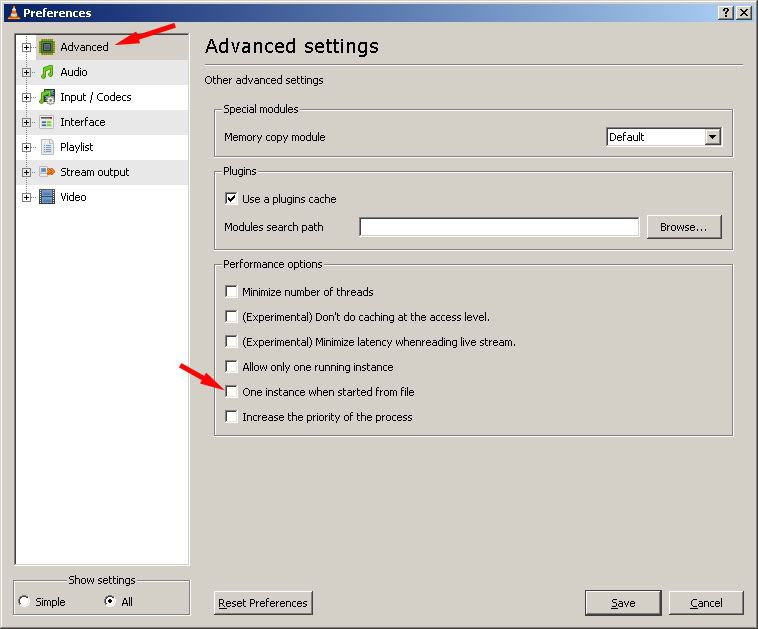
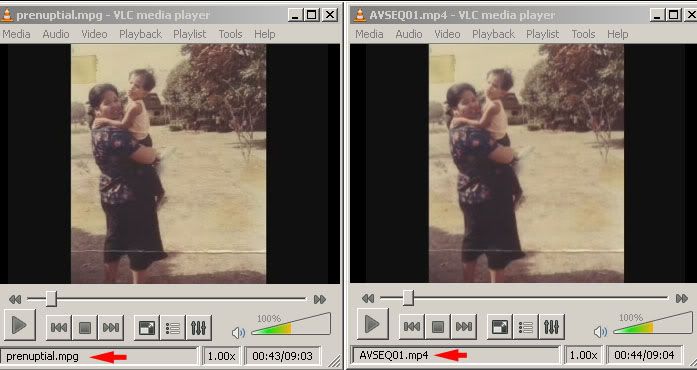
- I used this to compare the same video with different file format or watching multiple videos at the same time
1. Open VLC application
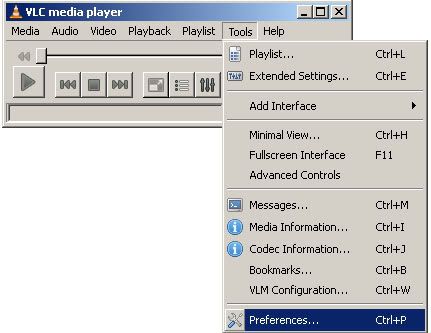
2. Go to TOOLS --> Preferences

3. Select All in Show Settings located at lower left of the pop-up window

4. In advanced tab, deselect One instance when started from file

5. Results

1. Open VLC application
2. Go to TOOLS --> Preferences
3. Select All in Show Settings located at lower left of the pop-up window
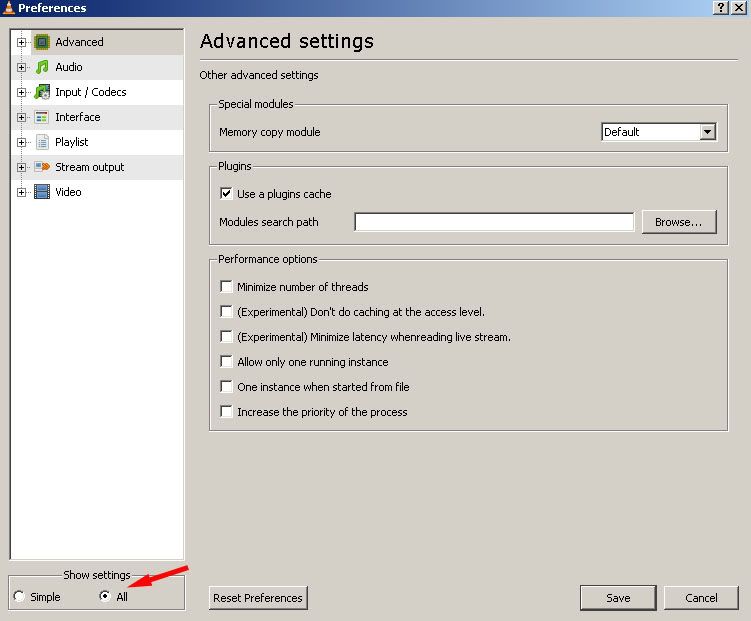
4. In advanced tab, deselect One instance when started from file
5. Results
Subscribe to:
Posts (Atom)